
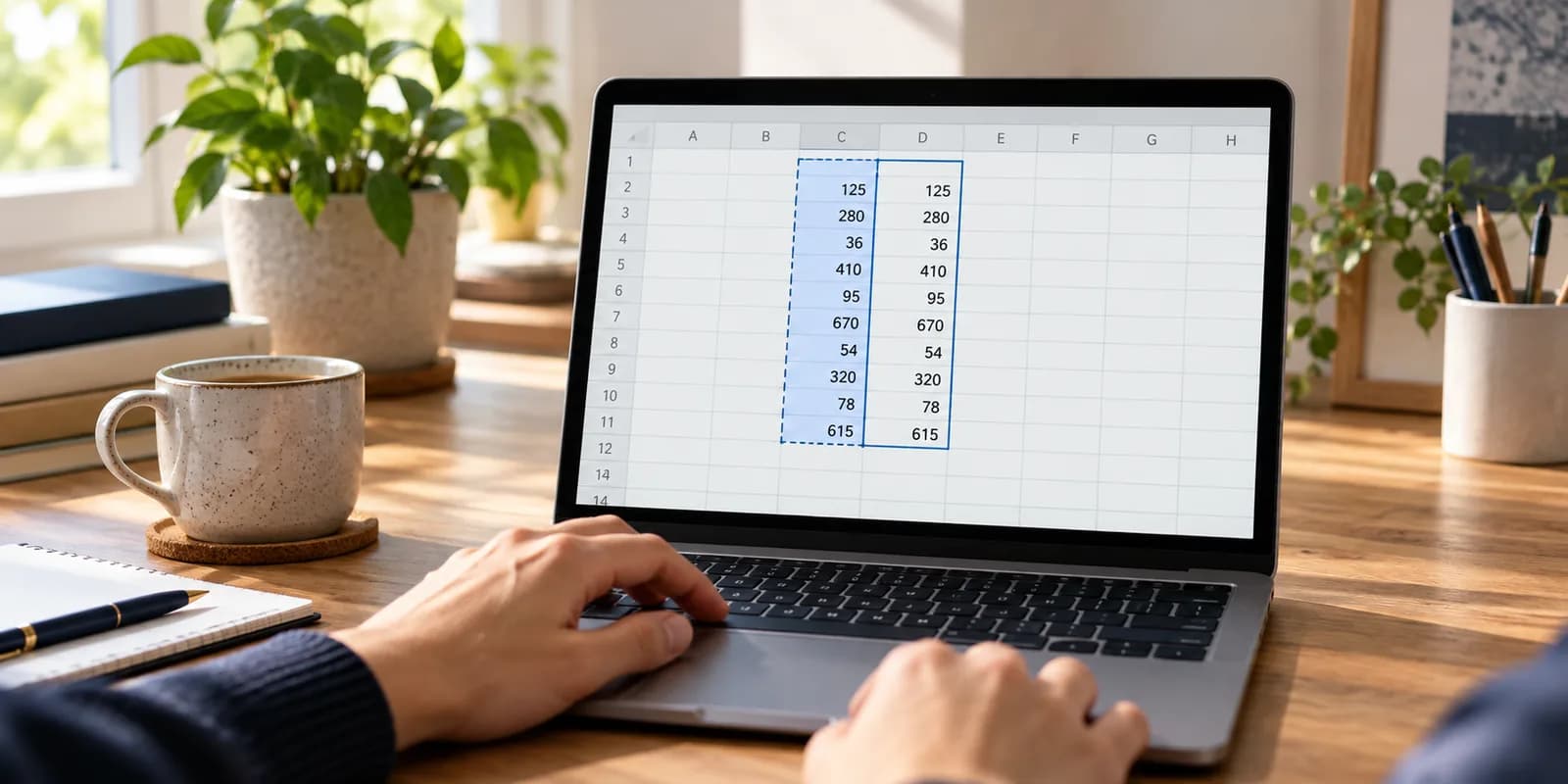
The Excel paste values shortcut, and when you actually want it
Ctrl+Shift+V pastes values only in Excel, and Cmd+Shift+V does the same on a Mac. It drops the formula behind a copied cell and keeps the number it had produced, which freezes that figure permanently. Alt+H+V+V does the same through the ribbon and works in every version of Excel.

Copying a cell in Excel copies the formula, not the number you can see. Most of the time that is what you want: it is the reason one formula can fill four hundred rows. Occasionally it is exactly what you do not want, and paste values is the fix.
It is worth two minutes of your attention because it is the shortcut people get wrong in both directions. Used too freely it turns a live report into a snapshot that quietly stops updating. Never used at all, it means sending colleagues workbooks full of formulas pointing at data they cannot see.
The shortcut
| Windows | Mac | What it does |
|---|---|---|
| Ctrl + C | Cmd + C | Copy the selection. A copied formula has its relative references shifted when it lands. |
| Ctrl + Shift + V | Cmd + Shift + V | Paste values only, the result without the formula behind it. |
Copy as normal, select where it should land, then press Ctrl+Shift+V instead of Ctrl+V. On a Mac it is Cmd+Shift+V. What arrives is the number, the text, the date, whatever the cell was displaying, with nothing behind it.
What is behind a number, and what paste values removes
A cell has two things in it: what it contains and what it shows. Click D2 in the sheet below and the grid shows 336, but the cell contains =B2*C2. The 336 is a consequence, recalculated every time B2 or C2 changes.
| A | B | C | D | |
|---|---|---|---|---|
| 1 | Rep | Sales | Rate | Commission |
| 2 | Ada | 4200 | 0.08 | 336 |
| 3 | Ben | 3100 | 0.08 | 248 |
| 4 | Cleo | 5600 | 0.08 | 448 |
| 5 | ||||
| 6 | Total | 1032 |
=B2*C2Paste D2 somewhere with Ctrl+V and the copy arrives as a formula, shifted to point at its new neighbours. Paste it with Ctrl+Shift+V and 336 arrives as a number that will read 336 for ever, whatever happens to Ada's sales figure afterwards.
That permanence is the whole point, and it is also the whole danger. Nothing on the face of a spreadsheet distinguishes a live 336 from a frozen one. The only way to tell is to click the cell and look at the formula bar, which is why the formula bar is worth glancing at whenever a number looks suspiciously unchanged.
When you actually want it
- Sending a figure to someone who will not have the source data. A formula referring to a sheet they cannot see shows them #REF!; a pasted value shows them the number.
- Keeping a record of what something was. Last quarter's totals should not move when this quarter's data is entered over the top of the source table.
- Breaking a chain of dependencies before deleting the thing at the end of it, so the deletion does not cascade into errors.
- Cleaning up after a lookup. Once a VLOOKUP has matched every row, freezing the result means the matched values survive the lookup table being reorganised.
What all four have in common is that the calculation has finished. Paste values when the answer is final, not when you are partway through building something, a frozen intermediate step is a formula you will have to write again.
The other ways to get there
Three routes reach the same place, and knowing more than one is useful because the keyboard shortcut is the one most likely to be missing on an older installation.
- 1Ctrl+Shift+V, straight to values, no dialog. The fastest, and the one this page is about.
- 2Alt+H+V+V, Home, Paste, Values through the ribbon. Slower to type, but works in every version of Excel including ones where the shortcut above does nothing.
- 3Ctrl+Alt+V, opens the full Paste Special dialog, where values is one option among formats, column widths, comments and a set of arithmetic operations. Use it when you want something other than values.
Paste Special is worth opening once just to see what is in it. Paste Special with Multiply selected, for instance, multiplies a whole range by a copied number in place, which is the quickest way to convert a column of prices into a column with VAT added without writing a formula at all.
Practise it here
Click a cell, copy it, then paste it both ways and watch the formula bar as you select the result. Ctrl+V keeps the formula and shifts its references; Ctrl+Shift+V leaves a bare number. Ctrl+Z puts it back.
| A | B | C | D | E | |
|---|---|---|---|---|---|
| 1 | Week | Sales | Costs | ||
| 2 | Week 1 | 1480 | 920 | ||
| 3 | Week 2 | 1225 | 880 | ||
| 4 | Week 3 | 1610 | 1040 | ||
| 5 | Week 4 | 940 | 760 | ||
| 6 | Week 5 | 1375 | 900 | ||
| 7 | |||||
| 8 | |||||
| 9 | |||||
| 10 |
Click a cell first so the grid has focus, then work through the list. Nothing here is scored and nothing is saved. Press the keys and watch what the grid does.
The exercise version puts it in context: work out a total, then freeze it, with the checker reading what is actually in the cell afterwards.
Freeze a result with Paste values
Sometimes you want the number without the formula behind it. Paste values is how, and knowing when is the real lesson. · 5 min · No account needed
What goes wrong
These are the four mistakes that come up again and again. Each one is reasonable. That is why people make it.
Pasting values over the formulas in a working model.
WhyThe numbers look identical immediately afterwards, so nothing appears to have gone wrong. The model only breaks the next time an input changes and the outputs sit still.
InsteadPaste values into a new column or a separate sheet, not over the live calculation. If you have already done it, Ctrl+Z, and if it is too late for that, the formula has to be rewritten.
Using paste values to fix a formula that changed when it was copied.
WhyA copied formula shifting its references looks like corruption, and freezing the number makes the symptom disappear.
InsteadThe shift is deliberate and usually correct. When one reference genuinely must not move, lock it with dollar signs, $B$1, rather than abandoning the formula.
Assuming a number is live because it looks like the others.
WhyA frozen value and a calculated one are visually identical. There is no marker, no colour, nothing.
InsteadClick the cell and read the formula bar. On a sheet somebody else built, that glance is the only reliable way to know whether a figure still updates.
Reaching for Ctrl+Alt+V when Ctrl+Shift+V would do.
WhyPaste Special is the route people were taught, so it stays in the fingers long after the direct shortcut existed.
InsteadCtrl+Shift+V if you want values. Save the dialog for the times you want formats, column widths or one of the arithmetic operations.
Common questions
Which keyboard shortcut is used to paste values only in Excel?
Ctrl+Shift+V on Windows and Cmd+Shift+V on a Mac. If that does nothing on your installation, use the ribbon sequence Alt+H+V+V, Home, then Paste, then Values, pressing the keys one after another rather than holding them together.
What is the difference between Ctrl+V and Ctrl+Shift+V?
Ctrl+V pastes everything: the formula, the formatting, the lot, with relative references shifted to suit the new position. Ctrl+Shift+V pastes only the result the formula had produced, as a plain value that will never recalculate.
Does paste values keep the formatting?
No. Values only means values only, bold, colours, borders and number formats are left behind, so a currency column can arrive as bare numbers. If you want the number format as well, use Paste Special with Values and Number Formats rather than the shortcut.
How do I remove all the formulas from a sheet?
Select everything, copy, then paste values back over the same selection. Every formula is replaced by whatever it was showing at that moment. It is irreversible once the file is saved, so do it on a copy of the workbook rather than the original.
Can I undo a paste values?
Yes, Ctrl+Z restores the formulas, and it will step back through several pastes if you keep pressing it. What it cannot do is help after the file has been saved and closed, which is the argument for pasting values into a new column rather than over the live one.