
Ranges, and the two-cells-and-a-colon notation
A range is a rectangle of cells, written as its top-left corner, a colon, and its bottom-right corner: B2:B6 is the five cells from B2 down to B6, and A1:C10 is the whole block thirty cells wide. Every Excel function that works on more than one cell expects this notation, which is why it is worth making automatic before meeting any of them.

A range is two corners and a colon. That is the entire notation, and once it is automatic every function in Excel becomes easier to read, because almost all of them take a range as their first argument.
The fill handle belongs on the same page because it is the other half of the same idea. A range is how you talk about many cells at once; the fill handle is how you write into many cells at once. Between them they remove most of the repetitive typing from a spreadsheet.
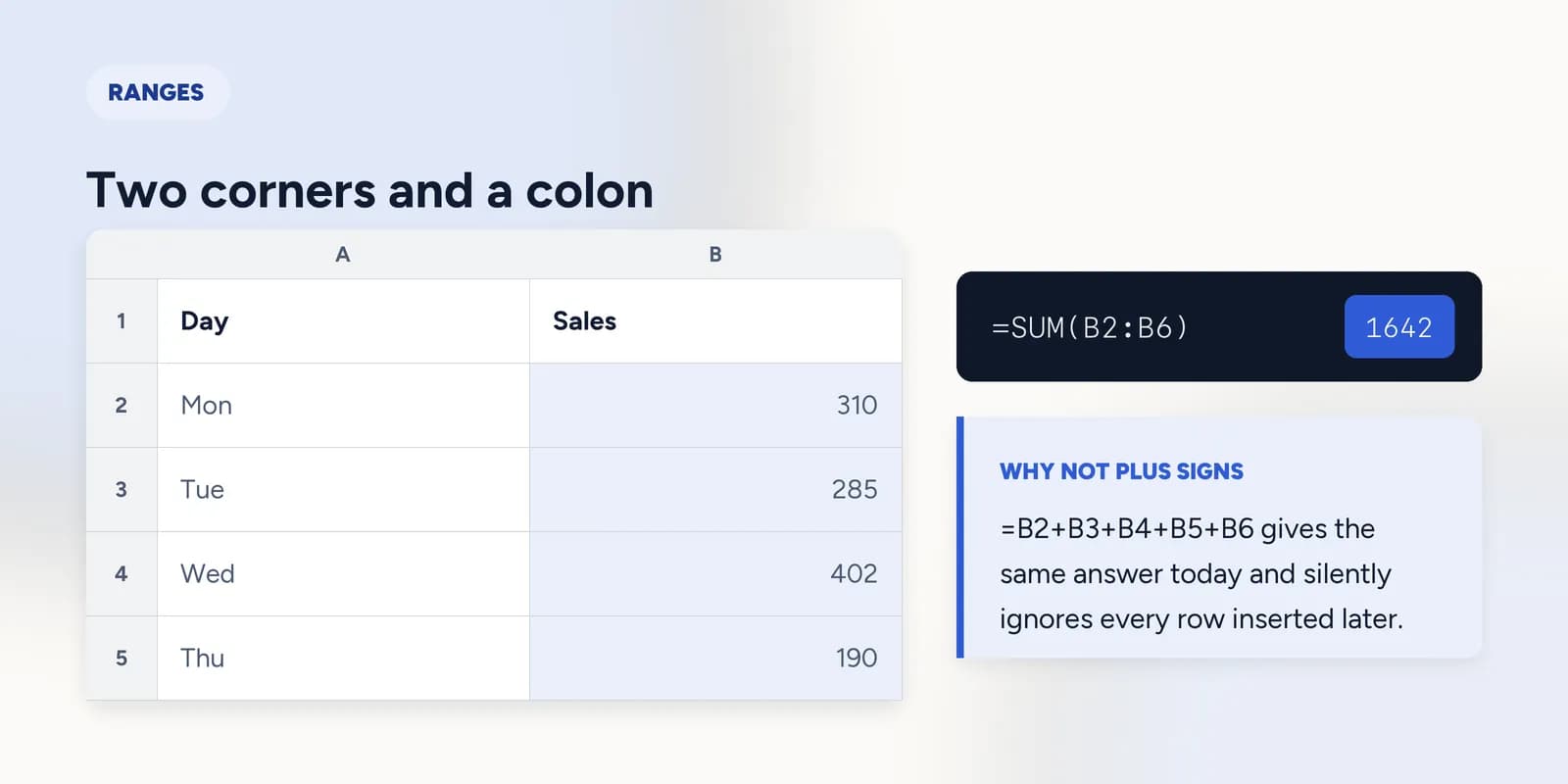
Two corners and a colon
A range address names a rectangle. You give the cell in the top-left corner, a colon, and the cell in the bottom-right corner, and Excel understands every cell in between. B2:B6 is a column five cells tall. A1:C3 is a block nine cells in total. The colon is doing the work of the word through.
| A | B | |
|---|---|---|
| 1 | Day | Sales |
| 2 | Mon | 310 |
| 3 | Tue | 285 |
| 4 | Wed | 402 |
| 5 | Thu | 190 |
| 6 | Fri | 455 |
| 7 | Total | 1642 |
=SUM(B2:B6)One argument covering five cells. Written out the long way this would be =B2+B3+B4+B5+B6, which is the same answer and a worse formula.
Both forms give 1642 today. They stop being equivalent the moment the data changes shape: insert a row inside the range and SUM adjusts, while the chain of plus signs keeps adding exactly the five cells it was told about and silently leaves the new one out.
The fill handle does two different things
The fill handle is the small square at the bottom-right corner of a selection. Dragging it copies what you selected into the cells you drag over. What it copies depends entirely on how many cells you gave it, and this trips people up because the behaviour changes without warning.
- Select one cell and drag: Excel repeats it. A value is copied as it stands; a formula is copied with its references shifted one row or column per step.
- Select two cells and drag: Excel reads the difference between them as a pattern and continues it. Give it 1 and 2 and you get 3, 4, 5. Give it 5 and 10 and you get 15, 20, 25.
- Double-click the handle instead of dragging: Excel fills down as far as the neighbouring column has data, which is quicker and does not overshoot.
The difference is worth dwelling on because it is the source of two opposite complaints. People who wanted a repeated value select two cells and get a series they did not ask for. People who wanted a series select one cell and get the same value forty times. In both cases Excel did exactly what the selection told it to, and the selection is the only thing you need to change.
Selecting a range without the mouse
Dragging across a long column is slow and easy to get wrong by one row, which matters more than it sounds: a total whose range stopped a row short is one of the commonest silent errors in real spreadsheets. The keyboard is both faster and exact.
| Windows | Mac | What it does |
|---|---|---|
| Ctrl + Arrow | Cmd + Arrow | Jump to the far edge of the sheet in that direction. |
| Shift + Arrow | Shift + Arrow | Extend the selection one cell in that direction. |
Shift with an arrow key extends the selection one cell at a time. Ctrl with an arrow key jumps to the edge of the block of data. Held together they select from here to the end of the data in one keystroke, which is the right way to select a column whose length you do not know.
What goes wrong
These are the mistakes this part exists to prevent. Each one is reasonable, which is why people make it and why nothing on the sheet objects.
Writing B2-B6 instead of B2:B6
WhyA hyphen reads naturally as a span, and in ordinary writing it is how you would express a range of anything.
InsteadA colon. Excel reads the hyphen as subtraction, so B2-B6 is an arithmetic expression that returns a single number rather than a range.
Dragging the fill handle from a single cell and expecting a series
WhyThe handle produces a series so often that it looks like the default behaviour rather than something inferred.
InsteadGive it the first two values, select both, then drag. One cell gives Excel no interval to continue.
Selecting a range by eye and stopping one row short
WhyOn a screen full of numbers the last row of a table and the blank below it look much the same, and the resulting total is plausible rather than obviously wrong.
InsteadSelect with Ctrl+Shift+Arrow so the selection runs to the real edge of the data, and check the row count Excel shows while you drag.
Common questions
What does A1:B10 mean in Excel?
It means every cell in the rectangle from A1 in the top-left to B10 in the bottom-right: two columns, ten rows, twenty cells in total. The colon is read as through.
What is the difference between a cell and a range?
A cell is one square. A range is a block of them named by its two opposite corners. Functions such as SUM and AVERAGE take ranges, which is how one short formula can work on hundreds of cells.
How do I fill a formula down a whole column?
Write the formula once in the top cell, then double-click the small square at the bottom-right of that cell. Excel fills down as far as the column beside it has data, adjusting the references as it goes.
Can a range cover more than one column?
Yes. A range is any rectangle, so A1:C20 covers three columns and twenty rows. Functions that total or count will work across the whole block.