
Counting and totalling only the rows that match
COUNTIF asks how many cells in a range meet one condition, and SUMIF adds up a second range for the rows that do. The condition is one argument, so a comparison has to be written as text in quotes, as in ">1000": the operator and the number are handed over together.

Filtering a list to count it by eye works until the list is forty rows long, at which point it stops working and you stop noticing that it has. These functions ask the question directly and recalculate when the data changes.
Two things in this part catch nearly everybody, and neither is conceptual. A comparison has to be wrapped in quotes, which looks wrong the first few times. And SUMIFS reverses the argument order of SUMIF, which looks like a mistake in Microsoft's design and is one you simply have to remember.
The condition is one argument
COUNTIF takes a range and a condition. When the condition is a plain value it looks exactly as you would expect, and nothing is surprising.
| A | B | C | |
|---|---|---|---|
| 1 | Region | Rep | Revenue |
| 2 | North | Ada | 4800 |
| 3 | South | Blake | 2100 |
| 4 | North | Chen | 7600 |
| 5 | East | Dara | 1200 |
| 6 | South | Eli | 5250 |
| 7 | North | Fay | 3300 |
| 8 | East | Gus | 980 |
=COUNTIF(A2:A8,"North")Three rows say North. Text criteria are matched without regard to capitals.
Now the part that looks wrong. To count the rows above a threshold, the operator and the number have to arrive as a single argument, because the function signature has one slot for the condition. That means they go inside the quotes together.
=COUNTIF(C2:C8,">3000")Four rows are over 3000. The quotes are not optional: without them Excel evaluates > 3000 as an expression before the function ever sees it.
SUMIF looks in one column and adds another
SUMIF takes three arguments: the range to test, the condition, and the range to add up. The first and third are different columns, which is the whole point, and keeping them straight is most of the difficulty.
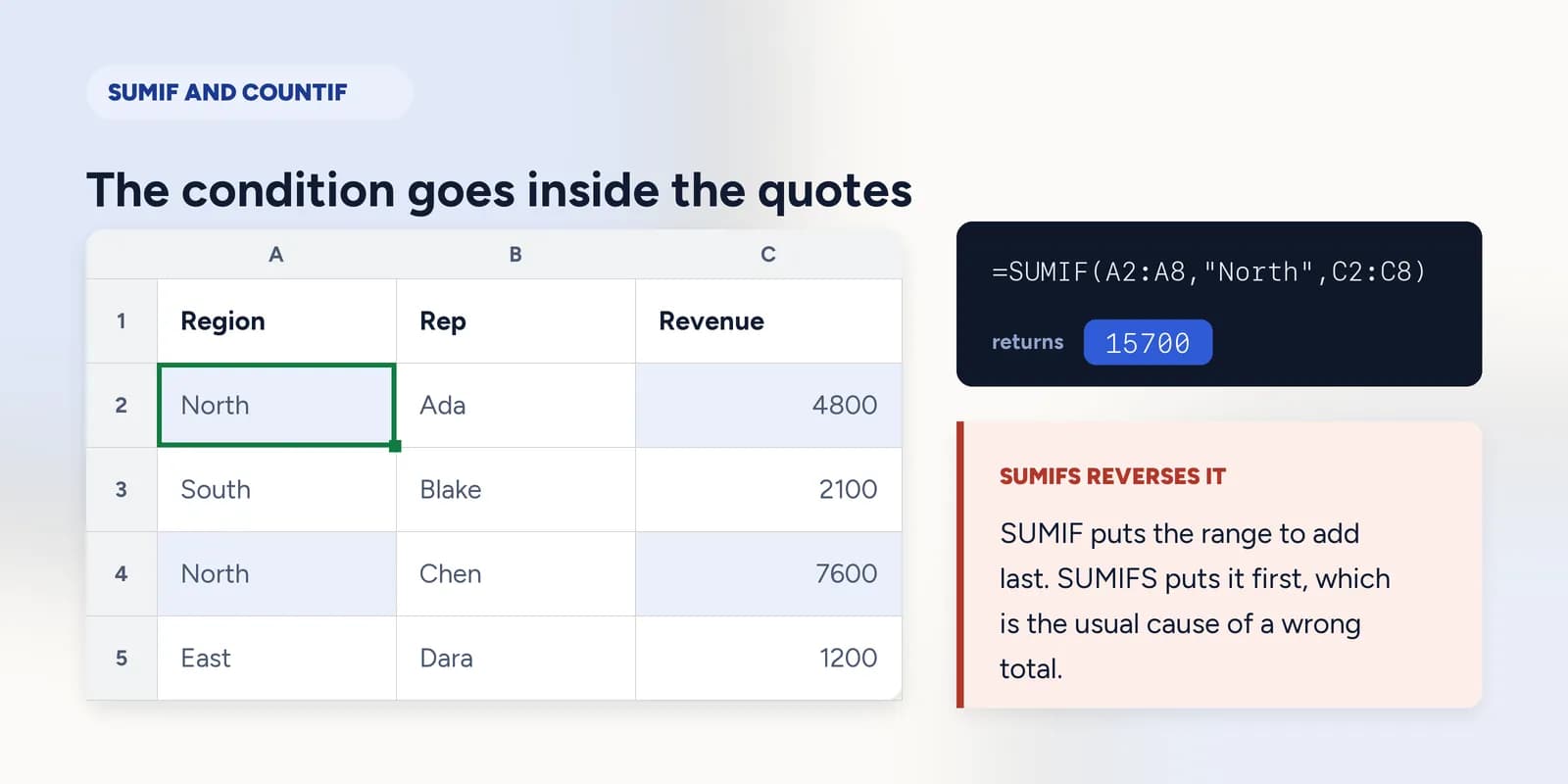
=SUMIF(A2:A8,"North",C2:C8)Test the region column, add the revenue column. The two ranges have to be the same height or the rows stop lining up.
If the third argument is left off, SUMIF adds up the range it tested. That is occasionally what you want, when the column holding the condition is also the one holding the numbers, and it is the reason the argument is optional.
The plural versions reverse the order
SUMIFS, COUNTIFS, AVERAGEIFS, MAXIFS and MINIFS take any number of condition pairs. They also put the range being totalled first rather than last, which is the opposite of SUMIF and the single most common reason one of these returns a wrong number rather than an error.
=SUMIFS(C2:C8,A2:A8,"North",C2:C8,">4000")Revenue range first, then pairs of range-and-condition. North and over 4000: two of the three North rows qualify.
- SUMIF: range to test, condition, range to add.
- SUMIFS: range to add, then range to test and condition, repeated as often as you like.
- COUNTIF and COUNTIFS do not have this problem, because neither of them takes a separate range to total.
What goes wrong
These are the mistakes this part exists to prevent. Each one is reasonable, which is why people make it and why nothing on the sheet objects.
Writing the comparison without quotes
WhyTyping >3000 is how you would write it anywhere else in Excel, and the quoted form looks like the number has been turned into text.
InsteadQuote the whole condition: ">3000". The function receives one argument and parses the operator out of it itself.
Putting SUMIFS arguments in SUMIF order
WhyThe two functions have almost the same name and do almost the same job, so the muscle memory from one carries straight into the other.
InsteadTotal range first for anything ending in S. If the answer looks wrong rather than erroring, check the argument order before anything else.
Using COUNTIFS and expecting rows matching any condition
WhyAdding more conditions feels like widening the net, in the way that adding filters to a search usually does.
InsteadCOUNTIFS narrows: a row must satisfy every condition. For any-of logic, add separate COUNTIFs together and subtract the overlap.
Common questions
How do I use COUNTIF in Excel?
=COUNTIF(range, criteria). For a word, =COUNTIF(A2:A8,"North"). For a comparison, the operator goes inside the quotes with the number: =COUNTIF(C2:C8,">3000").
Why does my COUNTIF with a greater-than sign not work?
The condition is one argument, so it has to be quoted as a whole: ">3000", not >3000. Unquoted, Excel tries to evaluate the comparison before handing it over and the function never sees the operator.
What is the difference between SUMIF and SUMIFS?
SUMIF takes one condition and puts the range to add last. SUMIFS takes any number of conditions and puts the range to add first. The reversed order is the usual cause of a wrong total.
Can COUNTIF use wildcards?
Yes. An asterisk stands for any run of characters and a question mark for a single one, so "North*" matches North and Northwest. To match a literal asterisk, put a tilde in front of it.
How do I count cells that meet two conditions?
=COUNTIFS(range1, criteria1, range2, criteria2). Every condition must hold on the same row, and all the ranges must be the same size.