
How to split a cell in Excel with formulas that keep working
To split a cell by position, use LEFT, MID and RIGHT with character counts: =LEFT(A2,2) takes the first two characters and =RIGHT(A2,4) the last four. When the parts vary in length, find the separator first and cut relative to it: =LEFT(A2,FIND(" ",A2)-1) returns everything before the first space, whatever the name.

Excel has a ribbon tool for this, Text to Columns, and it is the quicker answer for a one-off job. It is also a one-off: it writes values into cells and has no memory of where they came from, so when the source data is replaced next month somebody has to remember to run it again.
Formulas cost a minute more and keep working. They recalculate when the source changes, they document what the split was meant to be, and they are the version you can send to somebody else without instructions.
By position: LEFT, MID and RIGHT
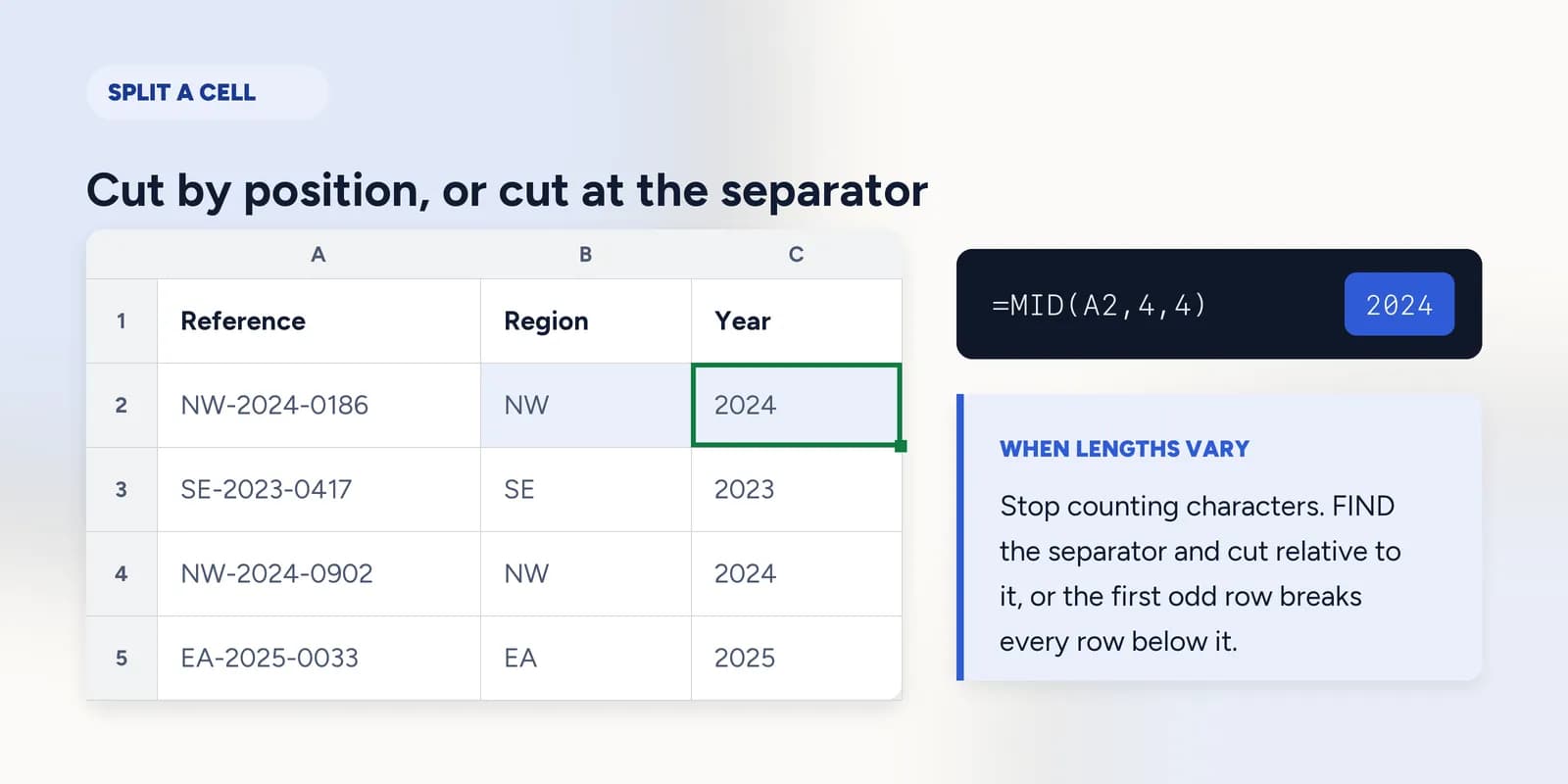
When every value has the same shape, you can cut by counting characters. LEFT takes from the start, RIGHT from the end, and MID from a position you name. Counting starts at 1, and separators such as hyphens count as characters.
| A | B | C | D | |
|---|---|---|---|---|
| 1 | Reference | Region | Year | Serial |
| 2 | NW-2024-0186 | NW | 2024 | 0186 |
| 3 | SE-2023-0417 | SE | 2023 | 0417 |
| 4 | NW-2024-0902 | NW | 2024 | 0902 |
| 5 | EA-2025-0033 | EA | 2025 | 0033 |
| 6 | SW-2026-1240 | SW | 2026 | 1240 |
=LEFT(A2,2)The region: the first two characters.
=MID(A2,4,4)The year: four characters starting at position 4, which is just past the first hyphen.
=RIGHT(A2,4)The serial: the last four characters. Counting from the end is safer than counting from the start when only the tail is fixed.
By separator: FIND tells you where to cut
When the parts vary in length, stop counting and find the separator. FIND returns the position of one piece of text inside another, and that position is what the cut is measured from.
| A | B | C | |
|---|---|---|---|
| 1 | Full name | First | Last |
| 2 | Ada Shah | Ada | Shah |
| 3 | Benedict Ortiz | Benedict | Ortiz |
| 4 | Cleo Nkemi | Cleo | Nkemi |
| 5 | Dev Rao | Dev | Rao |
=LEFT(A3,FIND(" ",A3)-1)Everything before the first space. The minus one stops the space itself coming along.
=MID(A3,FIND(" ",A3)+1,LEN(A3))Everything after it. LEN as the length is deliberate overshoot: MID stops at the end of the text rather than complaining.
SEARCH does the same job as FIND while ignoring capitals and accepting wildcards, which makes it the safer default of the two. FIND is the one to reach for when the difference between a capital and a lower-case letter is the thing you are splitting on.
When Text to Columns is the better answer
- A one-off clean-up of data that will not be refreshed. The tool is faster and leaves no formulas behind.
- A file with many separators per row, such as a CSV pasted into one column. Chained FIND formulas get unreadable quickly.
- Fixed-width data from an old system, which Text to Columns handles directly.
Formulas win whenever the source data will be replaced, whenever somebody else has to understand what was done, and whenever the split is part of a model rather than a one-time repair. This grid has the formula route and not the ribbon tool, which is also the route that transfers to Google Sheets unchanged.
The exercise is a reference number in three parts, and the checker reads the formulas rather than the three answers.
Split a code with LEFT, MID and RIGHT
Pull the three parts out of a reference number by counting characters from each end. · 5 min · Free account
What goes wrong
These are the four mistakes that come up again and again. Each one is reasonable. That is why people make it.
Splitting variable-length data by character count
WhyIt works perfectly on the first few rows, which are the ones you check, and the failures produce plausible fragments rather than errors.
InsteadFind the separator with FIND or SEARCH and cut relative to it, so the formula adapts to each row.
Forgetting the minus one after FIND
WhyFIND gives the position of the separator, which feels like the right number to stop at.
InsteadFIND returns where the separator is, so cutting to that position includes it. LEFT needs FIND minus one; MID needs FIND plus one.
Deleting the source column while the splits are still formulas
WhyThe three new columns look like finished data, and the original is now redundant.
InsteadCopy them and paste back as values first. Until then every one of them points at the column you are about to remove.
Common questions
How do I split a cell in Excel into two columns?
With formulas: =LEFT(A2,FIND(" ",A2)-1) for the part before the separator and =MID(A2,FIND(" ",A2)+1,LEN(A2)) for the part after it. Text to Columns on the Data tab does it as a one-off instead.
What is the difference between Text to Columns and a formula?
Text to Columns writes values once and forgets where they came from. A formula recalculates when the source changes and documents what the split was meant to be, which matters whenever the data is refreshed.
How do I separate first and last name in Excel?
Split at the first space: =LEFT(A2,FIND(" ",A2)-1) gives the first name and =MID(A2,FIND(" ",A2)+1,LEN(A2)) gives the rest. Middle names end up with the surname, which no formula reliably solves.
Why does my split formula return #VALUE!?
FIND returns #VALUE! when the separator is not in the cell, so one row without a space breaks that row. Wrap it: =IFERROR(LEFT(A2,FIND(" ",A2)-1),A2) leaves the whole value in place when there is nothing to split.
What is the difference between FIND and SEARCH?
FIND is case-sensitive and takes no wildcards. SEARCH ignores capitals and accepts them, which makes it the safer default unless the case is exactly what you are splitting on.