
Things that go wrong quietly
The dangerous spreadsheet faults are the ones that produce no error. A total whose range stops one row short still calculates, a number stored as text is silently skipped by SUM, and a deleted leading zero makes a code stop matching. Every one of these leaves a sheet that looks finished and is wrong, which is why they are worth learning to spot deliberately.

Every other part of this course teaches something to do. This one teaches something to notice. None of the five faults here produces an error value, a warning or a coloured triangle you can rely on, and that is precisely why they are the ones that end up in reports.
They are also the reason the habit of checking a total against something else is worth more than any single function. A figure that nothing corroborates is a figure nobody can defend.
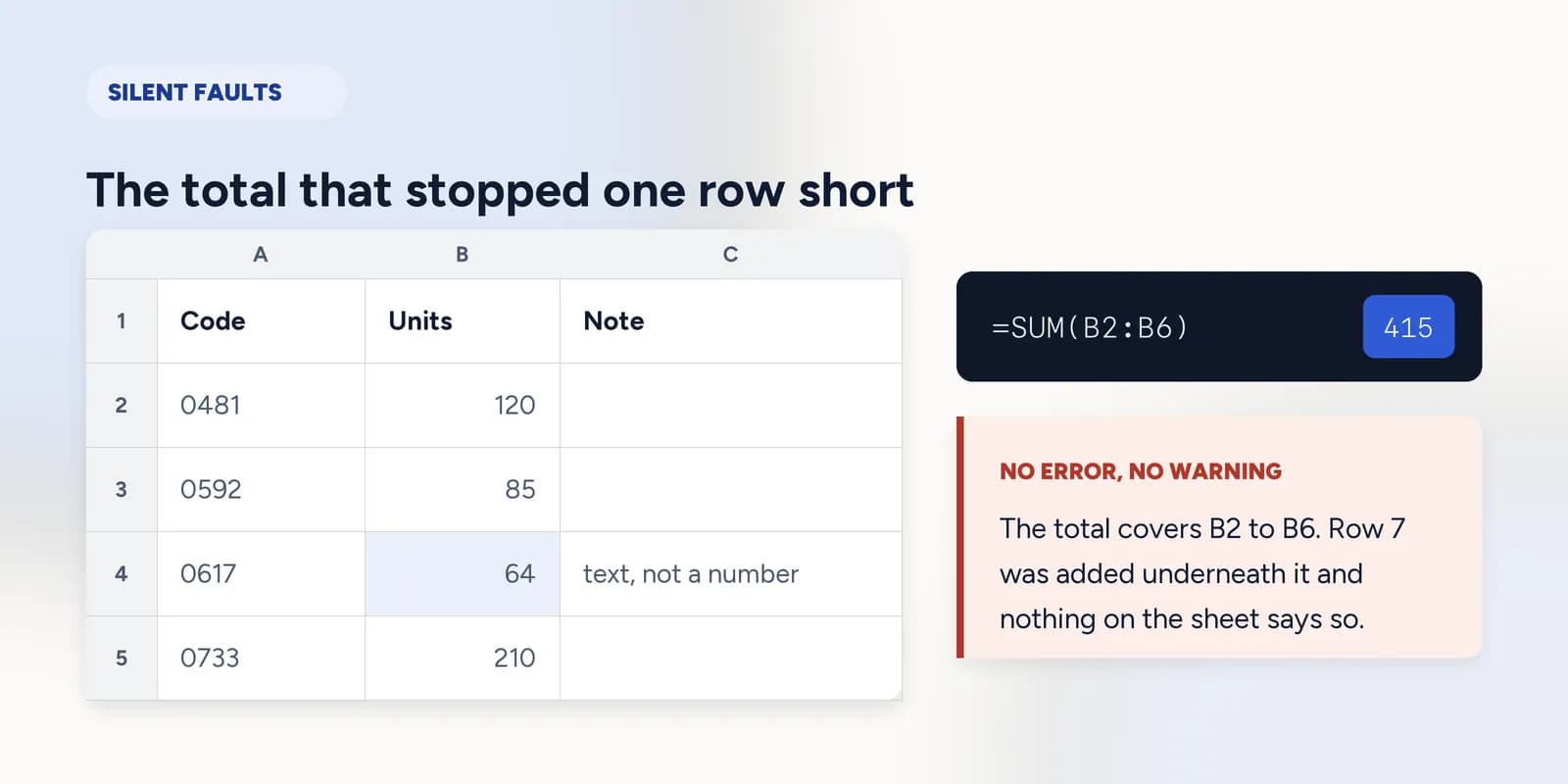
The total that stopped one row short
Somebody writes a total under a table. Months later somebody else adds a row. The total was told to add rows 2 to 6 and it carries on adding rows 2 to 6 for ever, because that is what it was asked to do.
| A | B | C | |
|---|---|---|---|
| 1 | Code | Units | Note |
| 2 | 481 | 120 | fine |
| 3 | 592 | 85 | fine |
| 4 | 617 | 64 | text, not a number |
| 5 | 733 | 210 | fine |
| 6 | 848 | blank, not zero | |
| 7 | 901 | 47 | added after the total |
| 8 | Total | 415 |
- The symptom is a total that is lower than it should be by a round-looking amount.
- It gets worse over time, as more rows land below the range.
- Checking a table's row total against its column total catches it immediately, which is why accountants have done exactly that for several centuries.
Numbers that are not numbers, and blanks that are not zeros
SUM skips text. It does not warn, it does not error, it simply leaves the value out, so one figure stored as text makes a total quietly too low. The alignment is the giveaway: Excel puts numbers on the right of the cell and text on the left.
=COUNT(B2:B7)Four numbers among six rows: one cell is text and one is empty. Compare this against the rows you can see and the discrepancy is immediate.
A blank is a different problem with the same face. SUM treats it as nothing, which matches what you want. AVERAGE leaves it out of the count, which may or may not be what you want: if the missing figure really is a zero, the average is now too high. Deciding which a gap means is a data question, not an Excel one.
The leading zero Excel deleted for you
Type 0481 into an ordinary cell and Excel stores 481, because numbers do not have leading zeros. The code is now four characters shorter than it should be in every lookup against the original list, and the deletion happened at the moment of entry while you were looking at the keyboard.
- Format the column as text before entering anything, and the zeros survive.
- An apostrophe at the start of an entry forces that one cell to text, which is the quick fix for a handful of values.
- On import, set the column type to text in the import dialog rather than fixing it afterwards, because by then you may not know how many zeros there were.
A formula frozen into a value
Paste values replaces a formula with whatever it happened to return at the time. There are good reasons to do it, such as fixing a figure that must not move after it has been signed off. There is also the bad version, where it is done to make an error go away and the cell silently stops tracking its inputs.
The symptom is a cell that does not change when the figures behind it do. Nothing is marked. The only reliable check is looking at the formula bar, which is why selecting a few cells and glancing at it is worth doing on any sheet you have inherited.
What goes wrong
These are the mistakes this part exists to prevent. Each one is reasonable, which is why people make it and why nothing on the sheet objects.
Trusting a total because it calculated
WhyA total that is ten per cent low looks exactly like a correct one, and the formula is genuinely working.
InsteadCorroborate it. Row totals against column totals, COUNT against the rows you can see, this month against last month.
Fixing numbers stored as text by reformatting the cell
WhyChanging the format to Number is the obvious move and the alignment sometimes appears to change.
InsteadFormatting does not convert existing content. Use VALUE, or multiply the column by 1 and paste the result back, or re-enter the values.
Filling blanks with zeros to tidy the column
WhyA column with gaps looks unfinished, and zeros make the totals and the averages run without fuss.
InsteadDecide what the gap means first. If the figure is genuinely unknown, a zero is a number you made up, and every average from then on is wrong.
Common questions
Why is my Excel SUM wrong or too low?
Usually either the range stops short of the data, or some of the figures are stored as text and are being skipped. Check the range in the formula bar, then run COUNT over it and compare with the number of rows you can see.
How do I convert numbers stored as text in Excel?
Changing the cell format does not convert what is already there. Use =VALUE(A2), or copy an empty cell and use Paste Special with Multiply, or select the column and use Text to Columns and finish immediately.
How do I keep a leading zero in Excel?
Format the column as text before typing, or start the entry with an apostrophe. On import, set the column to text in the dialog, because the zeros are gone the instant the value is read as a number.
Is a blank cell the same as zero in Excel?
Not to every function. SUM treats a blank as nothing, which gives the same answer as a zero. AVERAGE leaves it out of the count entirely, so a blank and a zero produce different averages over the same column.
How can I tell if a cell contains a formula or a value?
Click it and look at the formula bar. Ctrl+` toggles the whole sheet between showing results and showing formulas, which is the fastest way to audit an unfamiliar workbook.