
How to combine two columns in Excel without losing either of them
Join two columns in a third with the ampersand: =A2 & " " & B2 puts the first name, a space and the surname into one cell. The space has to be supplied as a quoted string because nothing in a join is added for you. CONCAT does the same job in function form, and Merge Cells is a different, destructive operation that keeps only the top-left value.

Two things get called merging columns and only one of them is what you want. Joining puts the contents of two columns together into a third and leaves the originals alone. Merge Cells makes several cells into one visual box and keeps only the top-left value, discarding the rest without asking twice.
This page is about joining. It is three characters of syntax and one thing everybody forgets, which is that the space between two words has to be supplied by you.
The ampersand, and the space you have to add
An ampersand between two values joins them. Everything in a join is literal: Excel puts exactly what you give it, in the order you give it, and adds nothing of its own. That is why A2 & B2 produces adashah rather than ada shah.
| A | B | C | D | |
|---|---|---|---|---|
| 1 | First | Last | City | Full name |
| 2 | ada | SHAH | Leeds | Ada Shah |
| 3 | ben | ortiz | Bristol | Ben Ortiz |
| 4 | cleo | nkemi | Leeds | Cleo Nkemi |
| 5 | dev | RAO | Cardiff | Dev Rao |
| 6 | eli | fontes | Bristol | Eli Fontes |
=A2&" "&B2The space is a quoted string in the middle of the join. Leave it out and the two words run together.
The same pattern handles anything: a comma and a space between a surname and a first name, a hyphen between two codes, a line break with CHAR(10). Each separator is another quoted piece in the chain.
=B2&", "&A2Surname first, the form a directory wants. Same join, different order and separator.
Fixing the capitals on the way through
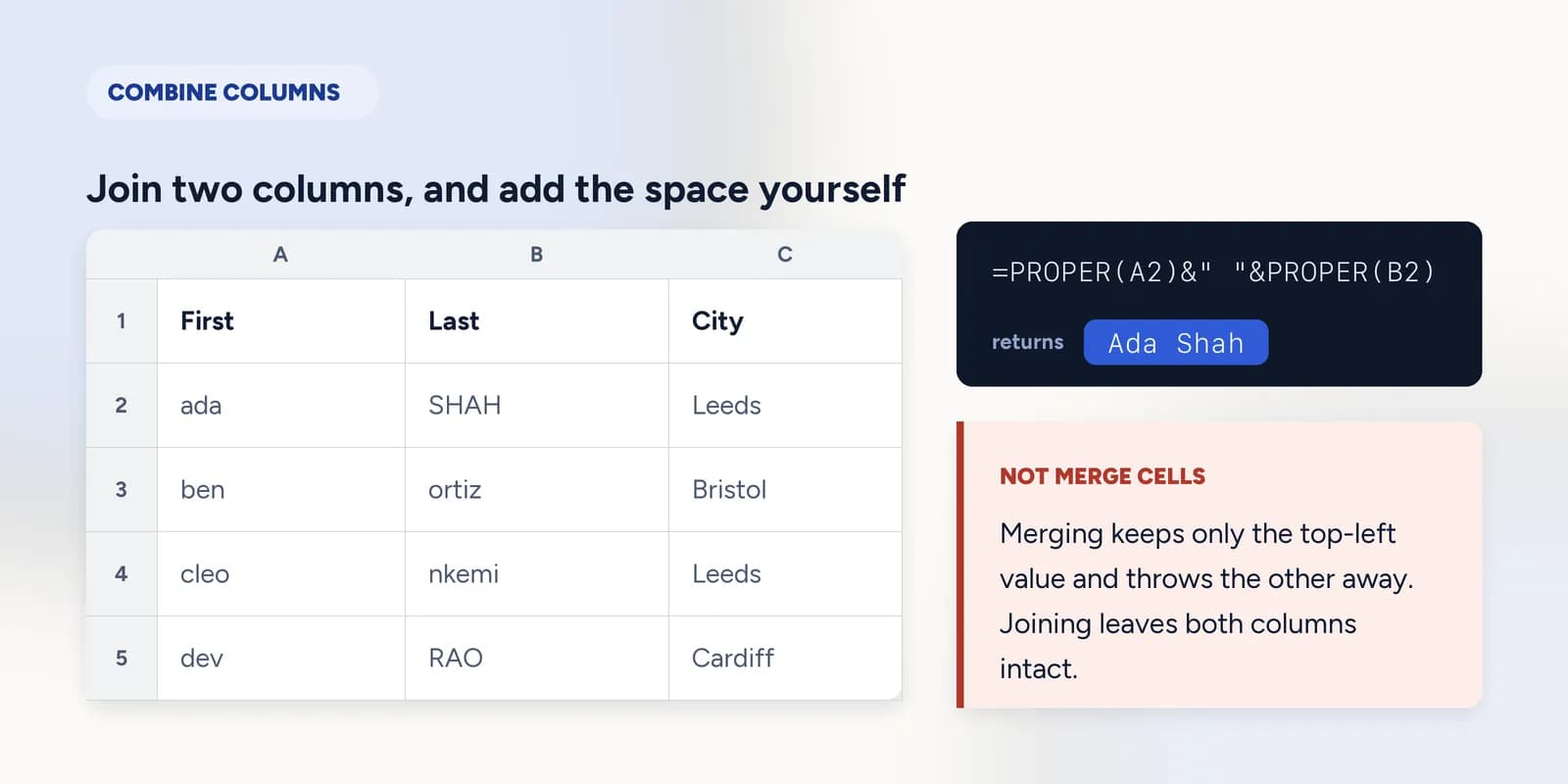
Data typed by several people arrives in several styles, and a join preserves every one of them. PROPER capitalises the first letter of each word, which is usually what a name column wants, and it costs nothing to wrap each half as you join them.
=PROPER(A2)&" "&PROPER(B2)The source columns hold ada and SHAH. Neither is what you would put on a letter.
TRIM is worth adding when the data came from an export. A trailing space on a first name turns into a double space in the middle of the joined result, which is invisible on screen and breaks every lookup against it afterwards.
=TRIM(PROPER(A2)&" "&PROPER(B2))Belt and braces: joined, capitalised, and any stray spacing collapsed.
CONCAT, CONCATENATE and TEXTJOIN
- CONCAT is the function form of the ampersand: =CONCAT(A2," ",B2). It does the same thing and is easier to read when the chain gets long.
- CONCATENATE is the older name for CONCAT, kept because older workbooks are full of it. There is no reason to write a new one.
- TEXTJOIN takes a separator once and then a range, so it is the right tool when you are joining many cells rather than two: =TEXTJOIN(", ",TRUE,A2:A6). The TRUE tells it to skip blanks.
=TEXTJOIN(", ",TRUE,A2:A6)A whole column as one comma-separated line. The separator is given once rather than between every pair.
The exercise is two name columns and a space that has to be there, checked on the formula rather than on the finished text.
Combine two name columns into a full name with CONCAT and a space between the words. · 4 min · Free account
What goes wrong
These are the four mistakes that come up again and again. Each one is reasonable. That is why people make it.
Expecting the ampersand to add a space
WhyJoining two words in English puts a space between them, so adashah reads as a glitch rather than as exactly what was asked for.
InsteadSupply it yourself: A2 & " " & B2. Everything in a join is literal.
Using Merge Cells to combine two columns
WhyIt is called merge, it is on the ribbon, and it does make two cells into one.
InsteadMerge Cells keeps only the top-left value and throws the other away. Join into a third column with the ampersand, which leaves both originals intact.
Deleting the source columns while the join is still a formula
WhyThe joined column looks like finished text, and the originals are now duplicated information.
InsteadCopy the joined column and paste it back as values first. Until you do, it is a formula pointing at cells you are about to remove.
Common questions
How do I combine two columns in Excel?
Put =A2 & " " & B2 in a third column and fill it down. The quoted space in the middle is the separator; without it the two values run together.
What is the difference between CONCAT and the ampersand?
Nothing, for two values. CONCAT is the function form and reads better in a long chain; the ampersand is shorter. CONCATENATE is the older name for CONCAT and there is no reason to write a new one.
How do I combine first and last name in Excel?
=A2 & " " & B2 for first-then-last, or =B2 & ", " & A2 for a directory. Wrap each half in PROPER to repair capitalisation typed by several different people.
Can I delete the original columns after combining them?
Not while the joined column is still a formula, or every cell becomes #REF!. Copy it and paste back as values, then the originals can go.
How do I combine more than two columns?
Keep chaining: A2 & " " & B2 & ", " & C2. For many cells at once TEXTJOIN is better, because the separator is given once instead of between every pair.